How to Compress Images Without Losing Quality
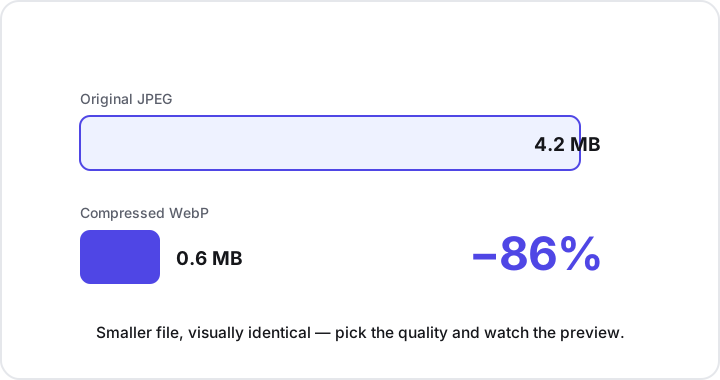
To compress an image without losing visible quality, save it as a lossy format (JPEG or WebP) at around quality 75-85, and resize it down to the size it will actually be displayed at first. That combination typically cuts file size by 70-90% while keeping the picture sharp to the human eye. The key is treating quality as a dial you tune against a live preview, not a single fixed setting.
Below is how image compression actually works, how to pick the right settings, and how to do all of it privately in your browser without uploading a thing.
Lossy vs lossless: what “compression” really means
There are two fundamentally different ways to make an image file smaller, and choosing the right one matters more than any other setting.
- Lossless compression keeps every pixel exactly as it was and simply stores the data more efficiently. PNG is the common lossless format. Nothing is discarded, so the savings are modest — usually a slimmer file, not a dramatically smaller one.
- Lossy compression removes detail that your eye is unlikely to notice, such as subtle color and brightness variations across nearby pixels. JPEG and WebP are lossy. Because it can throw data away, the savings are large, often in the 70-90% range, and at sensible settings the result looks identical to the original.
For photographs, lossy compression is almost always the right call. Photos contain so much fine, gradual detail that the human visual system never misses the parts a good encoder drops. For logos, screenshots, line art, and anything with hard edges or flat color, lossless PNG is usually the better fit (more on format choice below).
Quality is a dial, not a switch
When you compress a JPEG or WebP, you set a quality value, usually on a 0-100 scale. This is the single most important control you have, and it is genuinely a dial rather than an on/off switch.
For most photos, the sweet spot sits around quality 75 to 85. In that range you get a fraction of the original file size with no difference you can actually see. Push much below ~60 and compression artifacts start to appear: blocky patches in smooth areas like skies, and faint halos around sharp edges.
The practical method is simple:
- Start near quality 80.
- Look at a preview at full size.
- Nudge the value down until you can just barely notice degradation, then step back up a notch.
That last setting before any visible loss is your best balance of size and quality. Because the ideal point varies with each image — a busy landscape hides artifacts far better than a smooth gradient — a live preview beats guessing every time. Andev’s compress image tool gives you exactly that: drag the quality slider and watch both the preview and the resulting file size update as you go.
WebP: smaller files at the same quality
If your audience is on modern browsers — which today is nearly everyone — WebP is one of the easiest wins available. At a similar visual quality, WebP files are typically 25-35% smaller than the equivalent JPEG. For a website with dozens of photos, that adds up to meaningfully faster page loads and less bandwidth.
WebP supports both lossy and lossless modes and even transparency, which makes it a flexible single format for many use cases. Converting an existing JPEG or PNG to WebP is quick with the convert image tool, and you can fine-tune the quality afterward with the compress tool.
A reasonable default policy:
- Photos for the web → WebP at quality 75-85.
- Photos that must work everywhere, no exceptions → JPEG at quality 75-85.
- Graphics, icons, and anything needing crisp transparency → PNG, or lossless WebP.
Resize first — most files are far bigger than they need to be
Before you touch the quality slider, ask one question: how large will this image actually be displayed?
This is the step people skip, and it is often the biggest single saving available. A 6000-pixel-wide photo shown in a 1200-pixel-wide slot is wasting roughly 96% of its pixels — the browser just throws them away on display, but you still paid for them in file size, upload time, and bandwidth. Resizing the image down to the dimensions it is actually shown at, before compressing, shrinks the file dramatically with zero perceptible cost.
A quick pre-compression checklist:
- Resize to the real display size. Match the width to where the image appears (plus a little headroom for high-density screens). The resize image tool handles this in your browser.
- Then compress. Apply lossy compression at quality 75-85 on the already-resized image.
- Pick the right format. Photos go to JPEG or WebP; sharp-edged graphics and transparent images stay PNG. Need to go the other way for transparency or editing? The JPG to PNG converter covers that.
- Stop at “good enough”. Past the point where you can’t see a difference, a smaller file gains you nothing and only risks visible artifacts.
Why resize-before-compress beats compress-only
Compression and resizing reduce file size in different ways. Compression removes detail within the existing pixels; resizing reduces the number of pixels. Because file size scales with the pixel count, halving an image’s width and height removes about three-quarters of its pixels outright — a far larger lever than squeezing quality alone. Doing both, in that order, is how you reach the smallest file that still looks great.
Do it in your browser, privately
Most “compress image” websites upload your files to a remote server to process them. That is both slower and unnecessary — and it means handing your personal photos, screenshots, or sensitive documents to a company you may know nothing about.
Modern browsers can resize and re-encode images entirely on your own device using the HTML Canvas API. Andev’s image tools are built this way:
- Nothing is uploaded. Your image never leaves your device.
- Nothing is stored. When you close the tab, it’s gone.
- It’s instant. No upload or download round-trip to a server.
- There’s a live preview. You see the exact result before you commit.
The workflow is:
- Open the compress image tool.
- Drop in your photo (or resize it first if it’s oversized).
- Choose a format and slide the quality until you’re happy.
- Download the smaller file.
Key takeaways
- Use lossy formats for photos. JPEG or WebP can cut file size 70-90% with no visible loss; reserve lossless PNG for graphics, screenshots, and transparency.
- Aim for quality 75-85 and tune against a live preview — the ideal point depends on the image.
- WebP is typically 25-35% smaller than JPEG at the same quality and is the best default for the web.
- Resize before you compress. Matching the image to its actual display size is often the single biggest saving.
- Do it locally. Canvas-based, in-browser tools keep your images private, with no uploads and no limits.
Ready to shrink an image? Start with the free, private compress image tool — no uploads, no sign-up, no limits — or browse the full set of in-browser image tools.