How to Convert PDF to Word (.docx) for Free
To convert a PDF to an editable Word (.docx) file for free, use a browser-based tool that extracts the PDF’s text and rebuilds it as a Word document on your own device. Andev’s PDF to Word tool does exactly that: you drop in a PDF, it pulls out the text and paragraphs, and you download a .docx — without a single byte leaving your computer.
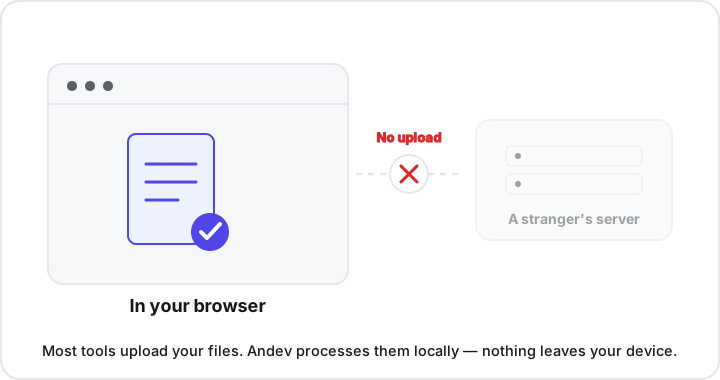
That last part is the difference that matters. Most conversion sites upload your file to a server first, but this one never does.
How the conversion works
For a long time, “convert PDF to Word” meant uploading your document so a remote server could process it. That’s no longer necessary. Modern browsers can do the work themselves, and Andev’s tool runs the whole conversion locally using two well-established open-source libraries:
- pdf.js reads the PDF and extracts its text content, page by page.
- The docx library takes that text and assembles a valid Word .docx file in the browser.
Here’s what happens, all on your device, the moment you add a file:
- The browser loads your PDF into memory — into the tab you have open, not onto a server.
- pdf.js parses each page and pulls out the selectable text and paragraph breaks.
- The docx library wraps that text into the structure of a Word document.
- The finished .docx is handed back to you as a download.
When you close the tab, it’s gone. There’s no server-side copy to clean up, retain, or accidentally leak.
Why “no upload” is the real advantage
Free online converters are everywhere, but the convenient ones almost always work by uploading your file. That means your document briefly lives on a stranger’s server, subject to a retention policy you can’t see and a security posture you can’t verify.
Think about what people actually convert to Word so they can edit it: resumes, cover letters, contracts, reports, school assignments, business proposals. None of that is something you’d casually hand to an unknown company.
A browser-based converter removes that entire category of risk. Because the file never leaves your device:
- It can’t be intercepted on its way to a server.
- It can’t be logged or stored by a third party.
- It can’t surface in someone else’s data breach.
- There’s no fine print to decode and no “we may share your data” clause to worry about.
This is privacy by architecture, not privacy by promise. The company isn’t choosing to delete your file responsibly — there was simply never a copy to delete.
How to convert a PDF to Word, step by step
The process takes only a few seconds:
- Open the PDF to Word tool.
- Drop your PDF onto the page, or click to browse and select it.
- Let the tool extract the text — this happens locally, right in the page.
- Download the resulting .docx and open it in Word, Google Docs, LibreOffice, or any editor that reads Word files.
No account, no email address, no watermark stamped across your pages. Once you have the .docx, you can edit the text exactly as you would any other Word document.
When it works well — and when it won’t
Being honest about a tool’s limits is more useful than overselling it, so here’s the straight version.
It works best on text-based PDFs
This converter shines when the PDF already contains real, selectable text — the kind created by exporting from Word, Google Docs, a web page, or most software that generates PDFs. If you can highlight the words with your cursor when you open the PDF, the tool can extract them cleanly. You’ll get back your headings, paragraphs, and body text in an editable .docx.
Scanned and photo PDFs need OCR
A scanned document or a photo saved as a PDF is really just an image wrapped in a PDF container. There’s no text underneath — only pixels. Try to select the words and you’ll select nothing.
Because this tool extracts existing text rather than reading images, it can’t convert a scanned or photographed PDF. Pulling text out of pictures requires OCR (optical character recognition), which this tool does not do. A quick test: open your PDF and try to highlight a sentence. If your cursor selects the text, you’re good. If it only draws a box over an image, you’ll need an OCR-based workflow instead.
Expect recovered text, not a pixel-perfect clone
Even with a clean text PDF, set your expectations correctly. The tool recovers your text and paragraphs so you can edit them — it does not reproduce the original layout exactly. In particular:
- Multi-column layouts may come out as a single flowing column.
- Complex tables may lose their grid structure and arrive as plain text.
- Precise positioning, spacing, and styling (custom fonts, exact margins, image placement) won’t be perfectly preserved.
For the most common goal — getting the words out of a locked-feeling PDF so you can revise, reuse, or repurpose them — that’s usually exactly what you want. If you need a faithful visual replica of a heavily designed document, no text-extraction converter will fully deliver that, and you may be better off rebuilding the layout in Word from the recovered text.
Tips for the cleanest results
- Confirm the text is selectable first. If you can highlight words in the PDF, conversion will work; if not, it’s a scan that needs OCR.
- Plan to tidy the formatting. Treat the .docx as a strong head start, then fix headings, spacing, and any table or column reflow in your editor.
- Keep the original PDF. Convert a copy so you always have the source to compare against.
Related PDF tasks you can do privately
Converting is rarely the only thing you need. The same in-browser, no-upload approach powers a small toolkit of related tasks:
- Got several PDFs to combine first? Merge them into one file before converting.
- Only need part of a document? Split a PDF to pull out the pages you actually want to edit.
Both run entirely on your device, with no sign-ups and no uploads.
Key takeaways
- Free and fully in-browser. Andev’s PDF to Word tool extracts text with pdf.js and builds a .docx with the docx library, all on your device.
- No upload, by design. Your file never reaches a server, so there’s nothing to intercept, log, retain, or leak.
- Best for text-based PDFs. If you can select the text in the PDF, the tool can convert it cleanly.
- Scans need OCR. Photographed or scanned PDFs contain no selectable text, and this tool does not perform OCR.
- Text, not a layout clone. Expect editable paragraphs and headings — columns, complex tables, and exact styling may need a quick cleanup.
Try it yourself
The PDF to Word tool is free, needs no sign-up, and runs entirely on your device — so your resumes, contracts, and reports stay private. Convert your PDF in seconds, then explore the rest of Andev’s private, in-browser tools for merging, splitting, and working with PDFs the same private way.