How to Split a PDF (and Extract Just the Pages You Need)
To split a PDF, open it in a browser-based tool, choose either a page range like 1-3,5,8-10 or “split every page into its own file,” and download the result. Andev’s Split PDF tool does exactly this — entirely on your device, with no upload, no page limits, and no loss of quality.
That last part matters. A good split leaves your text selectable and your fonts crisp, because it copies pages rather than re-printing them as images. Here’s when to split, how the page-range syntax works, and why doing it in the browser is the safest option.
Why you’d want to split a PDF
“Split” is a catch-all word for a few related jobs, and knowing which one you’re doing makes the rest easy:
- Extract a chapter or section. Pull pages 12 to 30 out of a long report or e-book so you can read or share just the part that matters.
- Remove unwanted pages. Strip a blank cover sheet, a fax banner, or an internal note before sending a document on.
- Share one section, not the whole file. Send a single signed page from a contract instead of the entire agreement.
- Break a big scan into pieces. Turn a 200-page scanned bundle into one file per page so each can be filed, named, or attached separately.
- Lighten an email. A 5-page extract attaches and opens far faster than the full document.
In every case the goal is the same: keep the pages you want, drop the rest, and end up with a clean, standalone PDF.
How in-browser splitting works
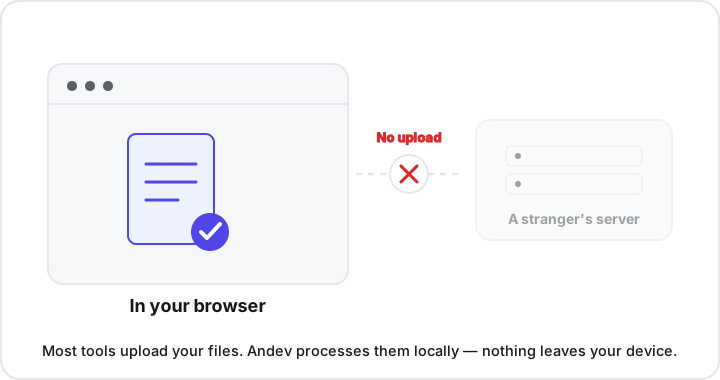
For years, splitting a PDF meant uploading it to a website that did the work on a server. That’s convenient, but it also means your document — which might be a payslip, a medical record, a tax form, or a signed contract — briefly lives on a stranger’s computer.
Andev’s Split PDF tool avoids that entirely. It runs in your browser using the open-source pdf-lib library. When you open a file, here’s what happens on your device:
- The browser reads the PDF into memory in the tab you have open — not to any server.
- The library parses the page structure of the document.
- It copies the pages you selected into a brand-new PDF.
- That new file is handed back to you as a download.
Because pages are copied losslessly, text stays selectable and searchable, and fonts and vector graphics stay sharp. You’re not flattening anything into a picture; the output is a real PDF. When you close the tab, the file is gone — there was never a server copy to delete.
How to split a PDF step by step
The whole thing takes a few seconds:
- Open the Split PDF tool.
- Drop your PDF onto the page, or click to browse and select it.
- Choose how to split:
- Extract a page range — type the pages you want (see the syntax below).
- Split every page — produce one separate PDF for each page in the document.
- Click split and download your result.
No account, no email, no watermark stamped across your pages, and no artificial page limit — the kinds of friction that upload-based sites add mainly to push you toward a paid plan.
The page-range syntax
The range box accepts a simple, readable format. You can mix single pages and ranges, separated by commas:
1-3— pages 1, 2, and 3.5— just page 5 on its own.1-3,5,8-10— pages 1 through 3, then page 5, then pages 8 through 10, all in one new file.
A few things worth knowing:
- Page numbers are the printed positions in the PDF, counting from 1 — not the page labels that might appear on the page itself.
- Order is preserved as you write it, so list ranges in the sequence you want them to appear.
- Spaces don’t matter.
1-3, 5, 8-10works the same as1-3,5,8-10.
If you’d rather not type ranges at all, the “split every page” option needs no input — it just gives you one file per page, ready to rename and sort.
Extract pages vs. split every page
These two modes cover almost every real need:
- Extract a range when you want a single new PDF containing a specific subset — a chapter, a few key pages, or everything except the bits you’re cutting. This is the right choice for “send just this part.”
- Split every page when you want each page as its own file — handy for archiving scans, processing forms one at a time, or feeding pages into another workflow.
If your real goal is to reorder or delete pages within one document rather than carve out a new one, the Organize PDF tool is the better fit — it lets you drag pages into a new order and remove them visually. And if you’ve split a file and later need to recombine pieces, the Merge PDF tool stitches multiple PDFs back into one.
Why privacy comes for free here
Because the file never leaves your device, a whole category of risk simply disappears:
- It can’t be intercepted in transit.
- It can’t be logged or retained on someone else’s server.
- It can’t surface in a third party’s data breach.
- There’s no privacy policy to decode and no “we may share your data” clause to worry about.
This is privacy by architecture, not privacy by promise. You’re not trusting a company to delete your document afterward — there was never a copy to delete in the first place. For routine tasks like splitting, that’s the sensible default, especially when the pages contain anything personal or financial.
Key takeaways
- Splitting means keeping the pages you want and dropping the rest — to extract a chapter, remove pages, or share one section.
- Two modes cover most needs: extract a page range into one new PDF, or split every page into its own file.
- The range syntax is simple: combine single pages and ranges with commas, like
1-3,5,8-10, counting from page 1. - It’s lossless: copied pages keep text selectable and fonts crisp — no flattening into images.
- Nothing is uploaded: the work happens in your browser with pdf-lib, so your document stays on your device.
- No limits or sign-up: no account, no watermark, and no cap on page count.
Ready to pull out the pages you need? Open the Split PDF tool and do it in seconds — privately, in your browser. You’ll find it alongside the rest of Andev’s free, in-browser PDF and file tools.