jpg-png-webp-which-image-format
Use JPG for photographs, PNG for graphics and anything needing transparency, and WebP when you want the smaller files of JPG plus the flexibility of PNG — which makes it the best default for the web. If you only remember one rule: photos lean toward JPG or WebP, sharp-edged graphics and logos lean toward PNG or lossless WebP.
Below is the full decision guide, a quick side-by-side comparison, and how to convert between formats privately in your browser.
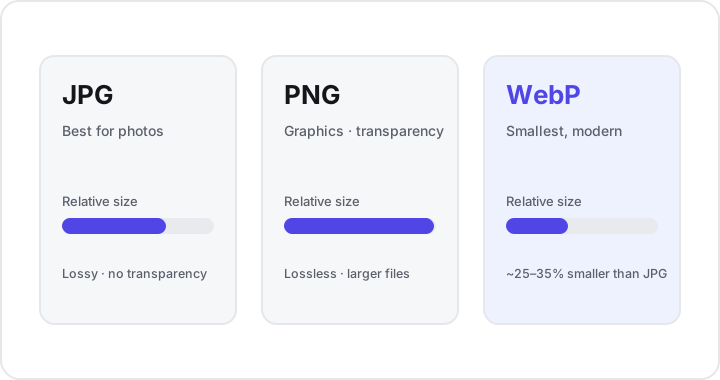
The three formats at a glance
Each format was built for a different job, and the differences come down to two things: whether they throw data away to save space, and whether they support transparency.
- JPG (JPEG) — Lossy. It discards detail your eye is unlikely to miss, producing small files. It excels at photographs and other images full of gradual color and tone. It does not support transparency.
- PNG — Lossless. It keeps every pixel exactly as it was, so files are larger, but quality is perfect and it supports transparency. It is the natural fit for graphics, logos, screenshots, and line art.
- WebP — Modern and flexible. It can do both lossy and lossless compression and supports transparency. At similar visual quality, WebP files are typically about 25-35% smaller than JPG, and it is supported by roughly 96% of browsers in use today.
Quick comparison
| JPG | PNG | WebP | |
|---|---|---|---|
| Compression | Lossy | Lossless | Lossy and lossless |
| Transparency | No | Yes | Yes |
| Best for | Photographs | Graphics, logos, screenshots, line art | Almost anything on the web |
| File size | Small | Large | Smallest at similar quality |
| Browser support | Universal | Universal | ~96% of browsers |
When to use JPG
Reach for JPG when you have a photograph — a person, a landscape, food, a product shot — and the image will be displayed without needing a transparent background.
Photos contain enormous amounts of fine, gradual detail: skies that shade smoothly from one blue to another, soft shadows, subtle skin tones. JPG’s lossy compression is tuned exactly for this kind of content. It removes information the human visual system tends not to notice, so you get a dramatically smaller file that still looks like the original.
JPG is the safest universal choice when an image absolutely must open everywhere — every browser, every device, every ancient piece of software has supported it for decades. The tradeoffs:
- No transparency. A JPG always has a solid rectangular background, so it is wrong for logos that need to sit on a colored page.
- Avoid for crisp edges. On text, screenshots, and line art, lossy compression smears sharp boundaries and leaves faint halos. Those belong in PNG or lossless WebP.
When to use PNG
Choose PNG when you need perfect, lossless quality or transparency. That covers a lot of everyday graphics work:
- Logos and icons that must sit cleanly on any background.
- Screenshots, where crisp text and UI edges matter.
- Line art, diagrams, and illustrations with flat areas of color and hard edges.
- Any image you will edit, re-save, and re-export repeatedly — because lossless means quality never degrades across saves.
The cost of all that fidelity is size: a photograph saved as PNG can be several times larger than the same photo as JPG, with no visible benefit. So PNG is the right tool for graphics and the wrong tool for photos.
What about transparency?
Transparency is the deciding factor in many cases. If part of your image needs to be see-through — the area around a logo, a cut-out product, an overlay — JPG is immediately off the table. Your choice is PNG or lossless WebP. PNG is the most broadly compatible; WebP gives you the same transparency in a smaller file when modern-browser support is enough.
When to use WebP
WebP is the modern all-rounder, and for websites it is usually the best default. Because it handles both lossy and lossless compression and supports transparency, it can stand in for either JPG or PNG while producing smaller files.
The practical wins:
- Faster pages. At a similar quality to JPG, WebP files are typically 25-35% smaller. Across a page full of images, that means quicker loads and less bandwidth.
- One format, two jobs. Use lossy WebP where you would have used JPG, and lossless WebP where you would have used PNG — including transparency.
- Wide support. With roughly 96% of browsers handling WebP, it is a safe choice for most public websites.
The main reason not to use WebP is reach: if your image has to open in older software or a context you do not control, the universal compatibility of JPG or PNG is worth keeping. For everything aimed at modern browsers, WebP is hard to beat.
A simple decision guide
Work through these in order and you will land on the right format almost every time:
- Is it a photograph? → JPG (maximum compatibility) or WebP (smaller, for the web).
- Does it need transparency? → PNG, or lossless WebP for a smaller file.
- Is it a graphic, logo, screenshot, or line art? → PNG, or lossless WebP.
- Is it for a website and most visitors use modern browsers? → Prefer WebP for speed, whatever the content.
- Must it open absolutely everywhere? → JPG for photos, PNG for graphics.
How to convert between them, privately
Picking the right format often means converting an image you already have — a PNG photo that should be a JPG, or a JPG you want as a smaller WebP for your site. You can do all of this in your browser with the convert image tool, without uploading anything.
Most online converters send your files to a remote server to do the work, which is slower and means handing your photos or screenshots to a company you may know nothing about. Andev’s tools work differently: conversion happens entirely on your own device using the browser’s built-in HTML Canvas.
- Nothing is uploaded. Your image never leaves your device.
- Nothing is stored. Close the tab and it is gone.
- It is instant. No round-trip to a server.
A typical workflow:
- Open the convert image tool and drop in your file.
- Pick the target format based on the decision guide above.
- Need it smaller too? Tune the quality with the compress image tool.
- Showing it at a fixed size? Resize it first — fewer pixels means a smaller file regardless of format.
Key takeaways
- JPG is lossy and ideal for photographs, but has no transparency and blurs sharp edges.
- PNG is lossless with transparency — the right choice for logos, graphics, screenshots, and line art, at the cost of larger files.
- WebP does lossy and lossless plus transparency, is typically 25-35% smaller than JPG at similar quality, and is supported by about 96% of browsers.
- For the web, prefer WebP for speed; keep JPG or PNG when an image must open everywhere.
- Convert privately. Canvas-based, in-browser tools change format with no uploads, no storage, and no limits.
Ready to switch formats? Start with the free, private convert image tool — no uploads, no sign-up, no limits — or browse the full set of in-browser image tools.