Merge PDF Files Privately in Your Browser

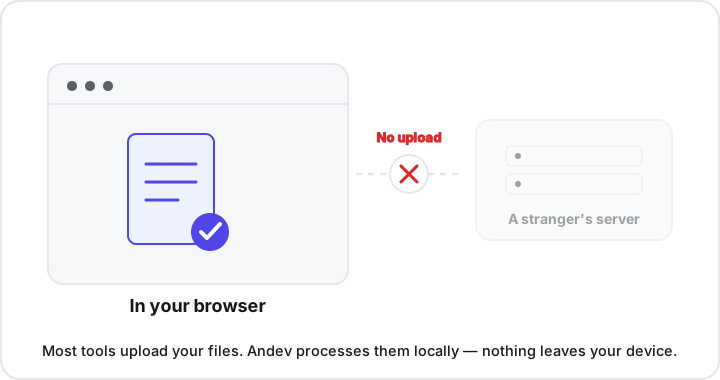
To merge PDF files privately, use a browser-based tool that processes the files on your own device instead of uploading them to a server. Andev’s Merge PDF tool does exactly this: you drop in your PDFs, drag them into order, and download one combined file — all without a single byte leaving your computer.
That distinction matters more than it sounds. Merging is a routine task, but it’s also one of the easiest ways to hand a sensitive document to a company you’ve never heard of.
Why “no upload” matters
Most “merge PDF” websites work by uploading your files to a server, combining them there, and sending the result back. It’s convenient, but your documents briefly live on someone else’s computer along the way.
Think about what’s often inside the PDFs people merge: invoices and receipts, signed contracts, payslips, tax forms, medical records, ID scans. The moment a file is uploaded, you’re trusting a third party’s security, retention policy, and good intentions. You can’t see how long they keep it, who can access it, or whether it ends up in a backup or a breach.
A browser-based tool removes that whole category of risk. If the file never leaves your device:
- It can’t be intercepted in transit.
- It can’t be logged or retained on a server.
- It can’t be exposed in someone else’s data breach.
- There’s no privacy policy to decode and no “we may share your data” clause to worry about.
This is privacy by architecture, not privacy by promise. You’re not relying on a company choosing to delete your file — there was never a copy to delete.
How in-browser PDF merging works
For years, real document processing meant a server, because browsers simply couldn’t do that kind of heavy lifting. That changed with WebAssembly — a way to run fast, compiled code directly inside a web page.
Andev’s Merge PDF tool runs 100% in your browser using WebAssembly, built on the open-source pdf-lib library. When you add your files, here’s what happens entirely on your device:
- The browser reads each PDF into memory — not to a server, just into the tab you have open.
- The library parses the page structure of every file.
- It copies those pages, in the order you choose, into a brand-new document.
- The combined PDF is handed back to you as a download.
Crucially, the pages are copied losslessly. Text stays selectable and searchable, fonts and vector graphics stay crisp, and nothing is flattened into a blurry image. The output is a true PDF, not a screenshot of one.
When you close the tab, it’s all gone. No server copy, no cleanup, nothing to leak.
How to merge PDFs step by step
The whole process takes a few seconds:
- Open the Merge PDF tool.
- Drop your PDF files onto the page, or click to browse and select them.
- Drag the files into the exact order you want them combined.
- Click Merge PDFs and download the single, combined file.
That’s it. No account, no email, no watermark stamped across your pages, and no artificial page limit — common annoyances on upload-based sites that exist mainly to push you toward a paid plan.
A few tips for clean results
- Order before you merge. Reorder the list first so the final document flows correctly; it’s easier than fixing page order afterward.
- Name the output clearly. A descriptive filename (for example,
Smith-contract-signed.pdf) saves you hunting later. - Merge in logical chunks. If you’re assembling a large bundle, combining related sections first keeps things manageable.
When a desktop app is still the better choice
In-browser tools are excellent for the vast majority of merging, but they’re not magic — the practical ceiling is your device’s available memory. Everything happens in RAM, so the limit is how much your machine can comfortably hold at once.
For everyday tasks — stapling an invoice to a receipt, combining a handful of scanned contract pages, assembling a short portfolio — that limit is far beyond what you’ll hit, and the browser is both faster and more private.
A dedicated desktop application may serve you better when you’re:
- Merging dozens of very large, high-resolution scanned PDFs in a single batch.
- Running the same merge repeatedly as part of an automated, scripted workflow.
- Working on older or low-memory hardware where big files feel sluggish.
For almost everything else, the browser wins on speed, convenience, and privacy.
Related PDF tasks you can do privately
Merging is rarely the only thing you need. The same in-browser, no-upload approach powers a small toolkit of related tasks:
- Pulled the wrong pages together? Split a PDF to extract or separate pages back out.
- File too big to email? Compress a PDF to shrink it without sending it to a server.
- Got images instead of a document? Convert JPG to PDF first, then merge the result into your bundle.
All of them run on your device, with no sign-ups and no file uploads.
Key takeaways
- Merging privately means no upload. Choose a tool that processes files in your browser so sensitive documents never reach a third-party server.
- WebAssembly makes it possible. The pdf-lib library runs locally to parse and combine your files right in the page.
- Pages are copied losslessly. Text stays selectable and searchable — the output is a real PDF, not an image.
- No limits, no friction. No sign-ups, watermarks, or page caps; the only practical limit is your device’s memory.
- Great for confidential work. Legal, medical, and financial documents stay on your machine, sidestepping a whole class of data-handling risk.
Try it yourself
The Merge PDF tool is free, needs no sign-up, and runs entirely on your device — ideal for confidential, legal, and medical documents. Combine your files in seconds, then explore the rest of Andev’s private, in-browser tools for splitting, compressing, and converting PDFs the same private way.